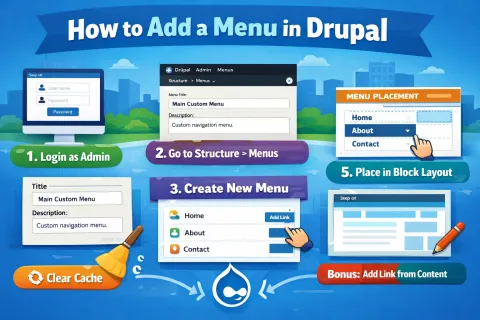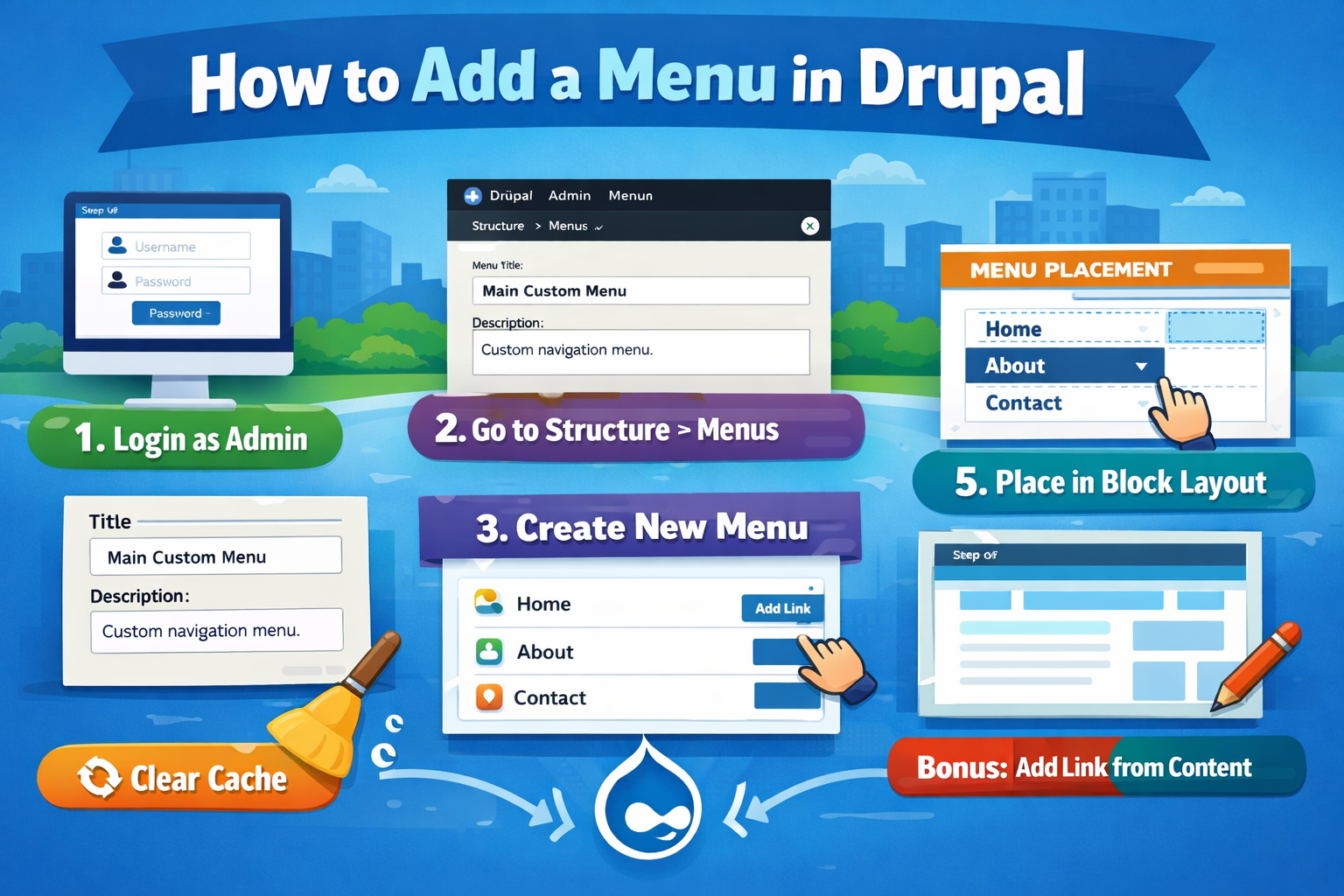
Step 1: Log in as Administrator
Log in to your Drupal site using an administrator account.
Step 2: Go to the Menus Page
- From the admin toolbar, go to:
Structure → Menus - Direct URL:
- /admin/structure/menu
Step 3: Create a New Menu
- Click Add menu
- Fill in the details:
- Title: Example – Main Custom Menu
- Description (optional)
- Click Save
Step 4: Add Menu Links (Menu Items)
- Click Add link next to your menu
- Enter:
- Menu link title – Text shown in the menu (e.g., Home, About)
- Link:
- Internal page: /about
- Front page: <front>
- External link: https://example.com
- Parent link – Select a parent to create a submenu
- Weight – Controls the order of menu items
- Click Save
Step 5: Place the Menu on the Website
Menus are displayed using blocks.
- Go to Structure → Block layout
- Choose the region (Header, Sidebar, Footer, etc.)
- Click Place block
- Select Menu | Your Menu Name
- Click Place block, configure settings, and Save
Step 6: Configure Visibility (Optional)
In block settings, you can control:
- Which pages the menu appears on
- Which user roles can see it
Step 7: Clear Cache (If Needed)
If the menu does not appear:
- Go to Configuration → Performance → Clear all caches
- Or run:
drush cr
Bonus: Add a Menu Link from Content
- Edit or create content
- Open Menu settings
- Check Provide a menu link
- Select the menu and parent item
- Save the content
Common Menus in Drupal
- Main navigation – Primary site menu
- Footer menu – Footer links
- User account menu – Login/Logout links
- Tools – Administrative links